Media Player Codec Pack Plus Installation Guide

Download Plus Installation Guide (PDF)
Printable step-by-step guide • Opens in browser

Follow this walkthrough from the moment the download finishes through to the final setup screen. It explains what the Plus installer shows, what each main step does, and what the expanded Plus component selection adds during Detailed Installation.

  • ✓ Covers Easy Installation and Detailed Installation
  • ✓ Explains the larger Plus component selection, hardware detection, and audio output options
  • ✓ Focused on the Plus installation process and what changes during setup
Guide length: about 5 minutes Applies to: Windows 10 and 11
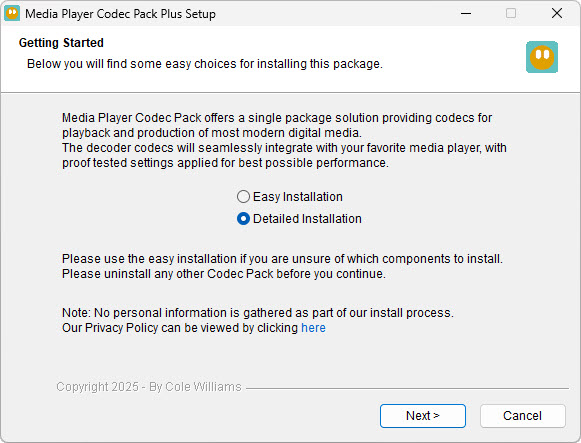
Media Player Codec Pack Plus installer Getting Started screen
The setup begins with a choice between a fast recommended path and a more configurable path.


Before you start with Plus

The Plus installer is designed to make setup clear and guided. It presents the main installation choices up front, discloses the components that can be installed, offers to remove an older version of itself when applicable, and uses conflict blocking logic to help avoid software conflicts and incompatible user selections.

  • Easy Installation is intended for most users and skips the extra video and audio configuration pages.
  • Detailed Installation gives more visibility into the expanded Plus component selection and shows the video and audio settings screens.
  • Hardware-aware defaults are applied after checking the system CPU, GPU, and codec support limits, even when the Plus build includes more optional components.

Step-by-step installation walkthrough

The sequence below follows the screenshots from download completion through to the finished installer screen. The Easy Installation path is shorter, while the Detailed Installation path includes the larger Plus component selection and the extra video and audio settings pages.

Step 1

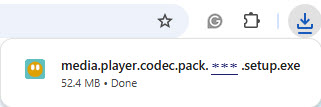
Open the downloaded setup file

Once the download has finished, open the setup file to begin installation. Downloaded Media Player Codec Pack setup file in the browser download bar
Step 2

Choose Easy Installation or Detailed Installation

The Getting Started screen offers two setup paths. Easy Installation is the recommended fast path for most users. Detailed Installation is for users who want to review the broader Plus component set and more settings during setup. Media Player Codec Pack Getting Started screen showing Easy Installation and Detailed Installation
What changes between them? Easy Installation follows a simpler flow and does not show the extra GPU or audio output configuration pages. Detailed Installation includes those pages.
Step 3

Review and accept the license agreement

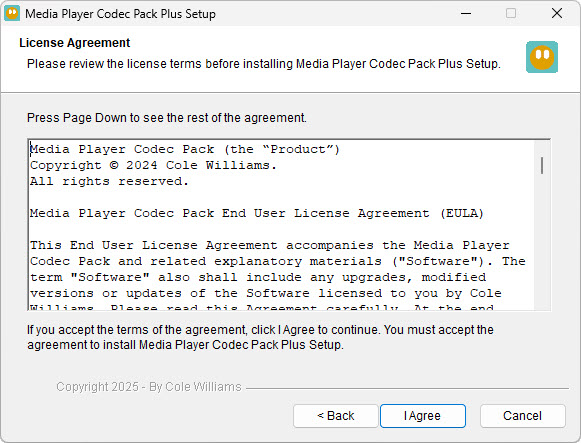
Read the license agreement, then click I Agree to continue. Media Player Codec Pack license agreement screen
Step 4

Review the component selection list

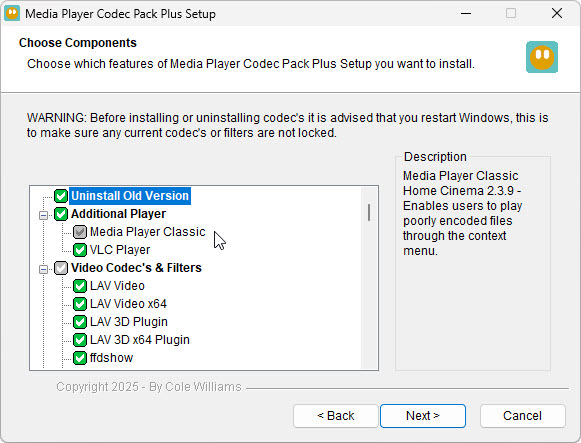
The installer shows which features and filters are selected for installation. It can also offer to uninstall an older version of itself first, helping to keep the setup clean. Media Player Codec Pack choose components screen
Transparency matters here: the component list is visible during setup, and further information is shown as different items are highlighted.
Step 5

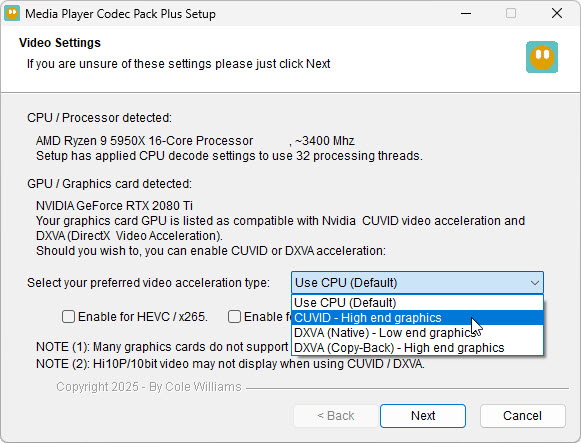
Review the video settings on Detailed Installation

On systems using Detailed Installation, the installer checks the detected CPU and GPU and applies suitable default processing and acceleration options. This helps match playback settings to real hardware capabilities and codec limitations. Media Player Codec Pack video settings screen with GPU and graphics options
Why this matters: some graphics cards, acceleration modes, and codecs work better together than others. The installer uses system detection to start from sensible defaults.
Step 6

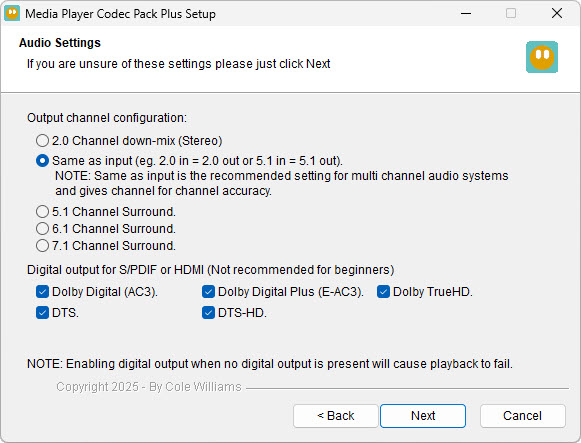
Review the audio output settings on Detailed Installation

Detailed Installation also includes audio output options such as matching the input channels, surround sound layouts, and digital output where relevant. Most users can keep the recommended defaults unless they already know their playback hardware needs different output settings. Media Player Codec Pack audio settings screen
Good default for most users: the recommended default is usually the safest choice unless your system is already set up for surround or digital audio output.
Step 7

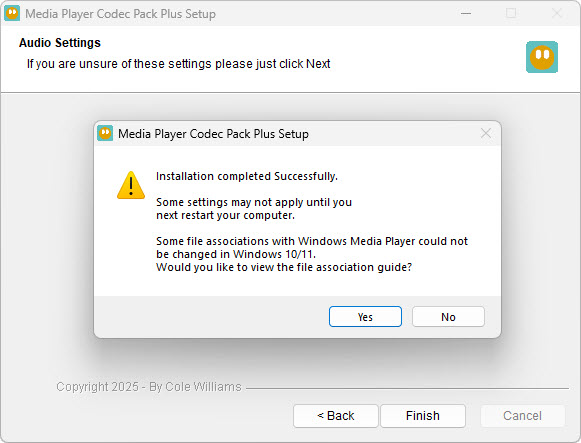
Finish setup and review the final message

After installation completes, the setup confirms that it finished successfully. Some settings may not apply until after a restart, and on Windows 10 or 11 the installer may also offer to open the file association guide. Media Player Codec Pack installation completed successfully screen

Quick recap

  • Run the downloaded installer
  • Choose Easy Installation or Detailed Installation
  • Accept the license agreement
  • Review the larger Plus component selection
  • On Detailed Installation, review video and audio options
  • Finish the setup and restart if needed

Important installation notes

  • The Plus installer is digitally signed.
  • Optional third-party software offers may appear in some cases and can be declined without affecting the codec pack installation.
  • Conflict blocking logic is used to reduce software conflicts and incompatible user selections.
  • An older version of the Media Player Codec Pack can be removed during setup when detected.

Frequently asked questions

  • What is the difference between Easy Installation and Detailed Installation?

    Easy Installation is the simpler path and is suitable for most users. Detailed Installation gives more control, shows the larger Plus component selection, and includes the extra video and audio settings screens.

  • Can I see what will be installed before continuing?

    Yes. The Plus installer shows the selected components during setup and provides extra component information as you browse the larger list.

  • Does the installer remove older versions of itself?

    Yes. When an older version of the Media Player Codec Pack is detected, the installer can offer to uninstall it as part of the installation process.

  • How does the installer decide which video settings to use?

    The installer checks the detected CPU and GPU and applies suitable defaults based on the system hardware and known codec or acceleration limitations.

  • Do I need to change the audio output settings manually?

    Usually not. Most users can keep the recommended defaults. Detailed Installation simply provides the extra options for users who need stereo, surround, or digital audio output choices.

  • Can I decline optional third-party software offers?

    Yes. Optional offers can be declined easily, and declining them has no impact on the rest of the Media Player Codec Pack installation.

  • Do I need to restart my computer after installation?

    Sometimes. The final screen notes that some settings may not apply until after a restart, so restarting is recommended when prompted.